Easle, a Firefox plugin for Canvas
The University of Washington uses the learning management system “Canvas” to host course materials, discussion boards, and more. Although it’s a popular platform, I had some UX improvements for my own class workflow to make. So I learned how to make a Firefox plugin.
Dashboard
Main dashboard
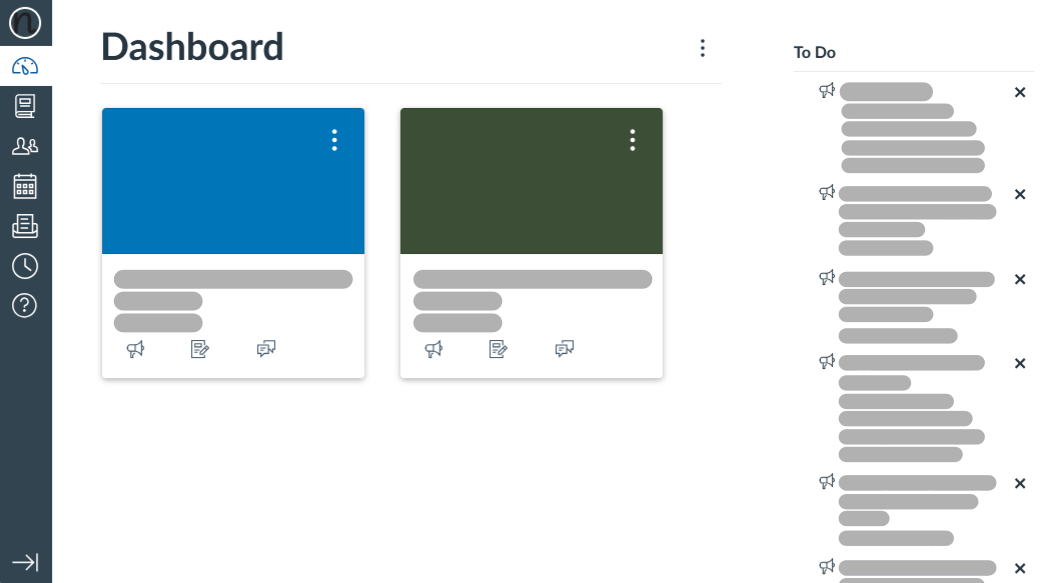
The main part of the dashboard is defaulted to a “card view”, where you can select Announcements, Assignments, and Discussion boards.
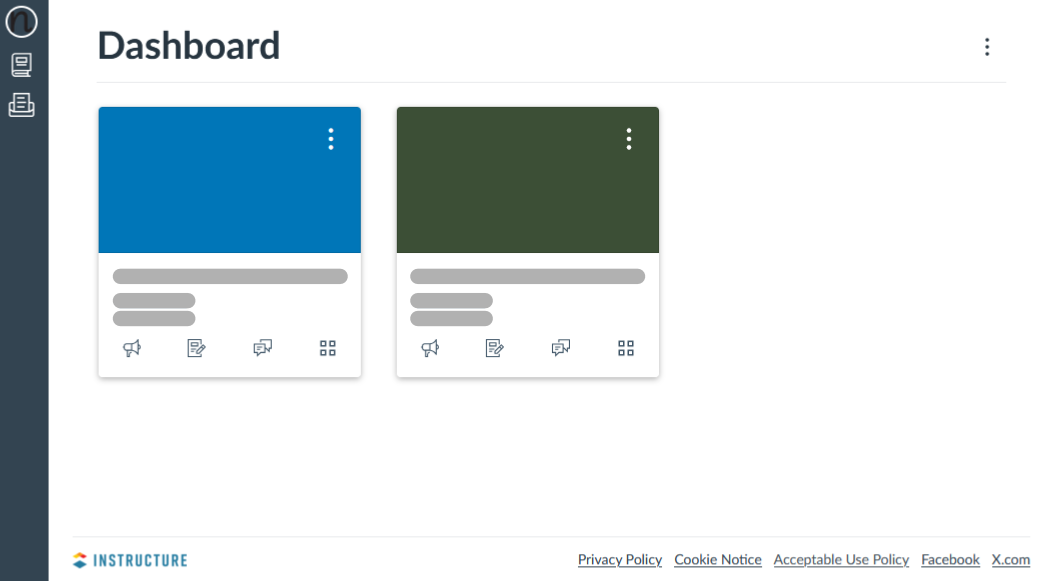
My change: I added a new “Modules” button. All courses in my Master’s program have revolved around the Modules section, so I wanted a link directly to that page in each course right from the dashboard.
How I did it: I grab the CourseID from the hyperlinked course name in each card, then create a new link leading to /<courseID>/modules and insert a new icon in the <div> containing the other action buttons (announcements, assignments, discussion boards).
Left navigation
In the image above, the current Canvas design has several buttons on the global left navigation: Profile, Dashboard. Courses. People. Calendar. Inbox, History, and Help.
I only use a few of those buttons in my workflows, and the “Help” button often has a number badge because of Canvas updates 🫤
My change: I’ve removed nearly all the buttons, keeping: Profile, Courses, and Inbox.
How I did it: I used the Inspector to find the IDs of all the <Divs> I wanted to hide and made an array. Then in a globally referenced JS file, I cycle through each object and set its display to “none”.
To Do list
The To Do list is supposed to be a quick reference to announcements, assignments, and more. But because the University of Washington enrolls all students in some announcement-based courses (like for the Student Handbook), the To Do list gets easily cluttered with job fair announcements, resume tips, and more.
And the main way I hear about announcements is via email. So on my dashbaord, I’m constantly just “closing” each To Do list item.
My change: Completely hide the To Do List and the “Assignments” below it.
How I did it: Similar to the left navigation buttons, I found the IDs needed to fully hide the To Do List, saved it in an Array, and then I cycle through to hide them.
Discussion boards
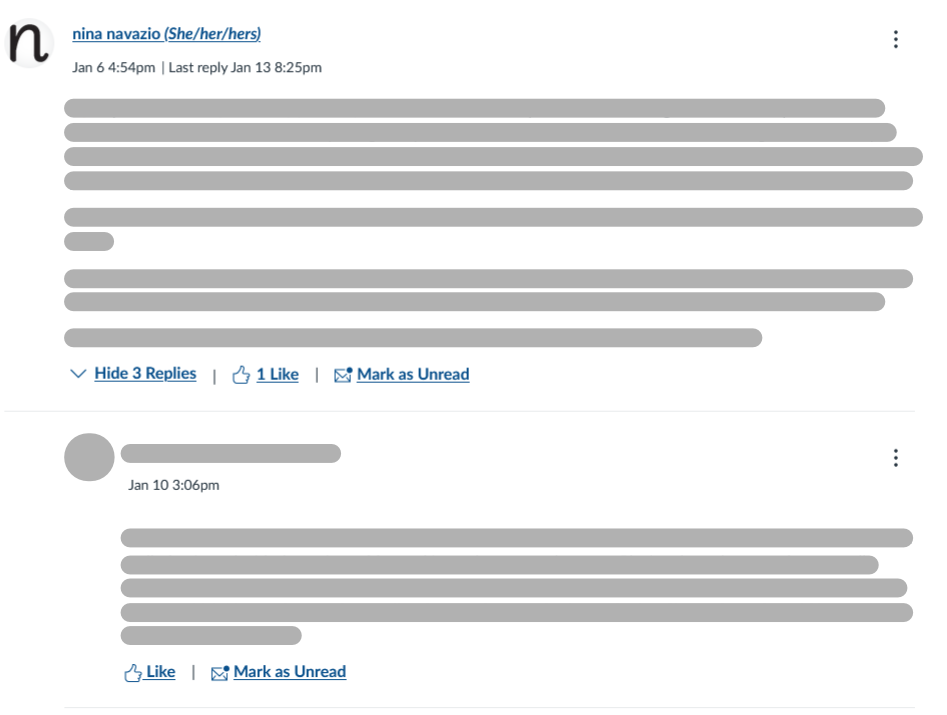
Main post
When you visit your school’s Canvas on a computer, you land on a Dashboard with several sections:
- A left vertical navigation bar, with buttons to your dashboard, all courses, people, calendar, inbox, history, and help.
- A main center section, with cards for each of your classes. These cards have buttons leading to the course’s announcements, assignments, and discussion boards. (You can also view this in a “list view”).
- A “To Do” list, populated with every announcement and assignment from all your courses, even if they’re hidden.
My extension touches each of these sections.
When you visit your school’s Canvas on a computer, you land on a Dashboard with several sections:
- A left vertical navigation bar, with buttons to your dashboard, all courses, people, calendar, inbox, history, and help.
- A main center section, with cards for each of your classes. These cards have buttons leading to the course’s announcements, assignments, and discussion boards. (You can also view this in a “list view”).
- A “To Do” list, populated with every announcement and assignment from all your courses, even if they’re hidden.
My extension touches each of these sections.
Action buttons
Replies
When you visit your school’s Canvas on a computer, you land on a Dashboard with several sections:
- A left vertical navigation bar, with buttons to your dashboard, all courses, people, calendar, inbox, history, and help.
- A main center section, with cards for each of your classes. These cards have buttons leading to the course’s announcements, assignments, and discussion boards. (You can also view this in a “list view”).
- A “To Do” list, populated with every announcement and assignment from all your courses, even if they’re hidden.
My extension touches each of these sections.